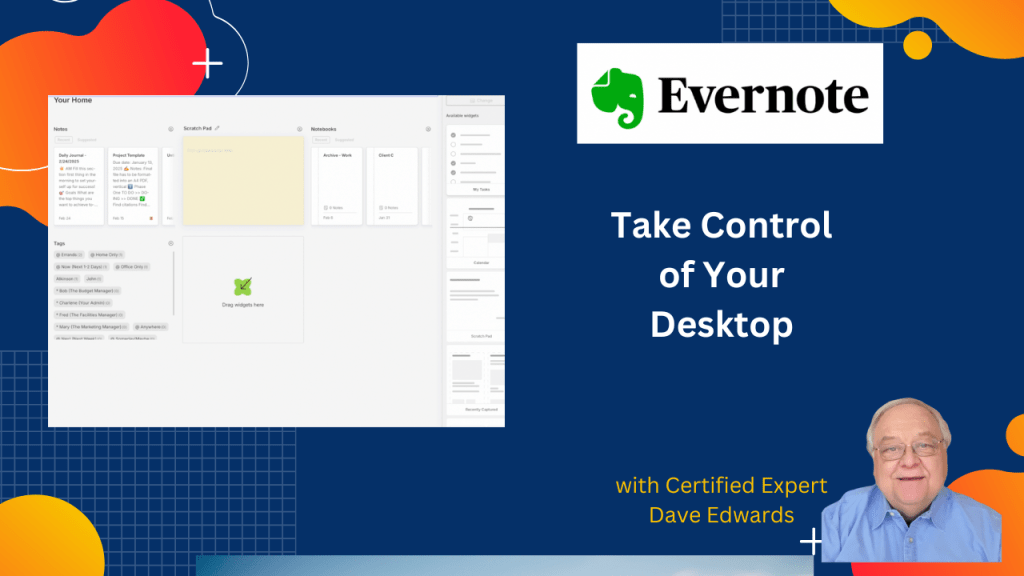
Evernote’s home screen is more customizable than ever—are you using it to its full potential? A few quick tweaks can boost your productivity and streamline your workflow.
Whether you are new to Evernote or just want to see how to use it more effectively, my course “Evernote For Beginners” will help.

Planning your Evernote home screen can save time and improve daily productivity by helping you focus on the tools you use most often. The platform offers flexible settings that let you adjust the sidebar, choose which features to display, and customize home screen widgets like tasks, calendar, shortcuts, and scratch pad. By reviewing your Evernote settings and organizing your layout around your workflow, you can reduce clutter and work faster. Features like the scratch pad allow quick note capture, while widget placement and visibility controls give you full control over your workspace. Taking a few minutes to think through your setup can make Evernote more efficient and easier to use every day.
- Customizing your Evernote home screen helps improve productivity and reduces wasted time.
- The Evernote settings menu allows you to control features like dark mode, links, and spelling.
- Sidebar customization lets you choose which tools and note options are visible.
- You can toggle features like recent notes, tasks, and event buttons on or off.
- Evernote widgets allow you to personalize your home screen layout for better workflow.
- You can add tools like tasks, calendar, shortcuts, and pinned notes to your dashboard.
- The drag and drop feature makes it easy to rearrange Evernote widgets quickly.
- The scratch pad feature allows fast note capture for ideas and reminders.
- Scratch pad notes can be cleared, saved, or converted into full Evernote notes.
- Reviewing how you use Evernote helps you create a cleaner and more effective setup.

Evernote home screen customization, Evernote productivity tips, Evernote settings guide, Evernote workflow optimization, Evernote sidebar setup, Evernote widgets setup, Evernote task management, Evernote organization tips, Evernote scratch pad feature, Evernote note taking app, Evernote dashboard layout, improve Evernote productivity, Evernote customization tips, Evernote features guide, Evernote daily workflow


Leave a comment