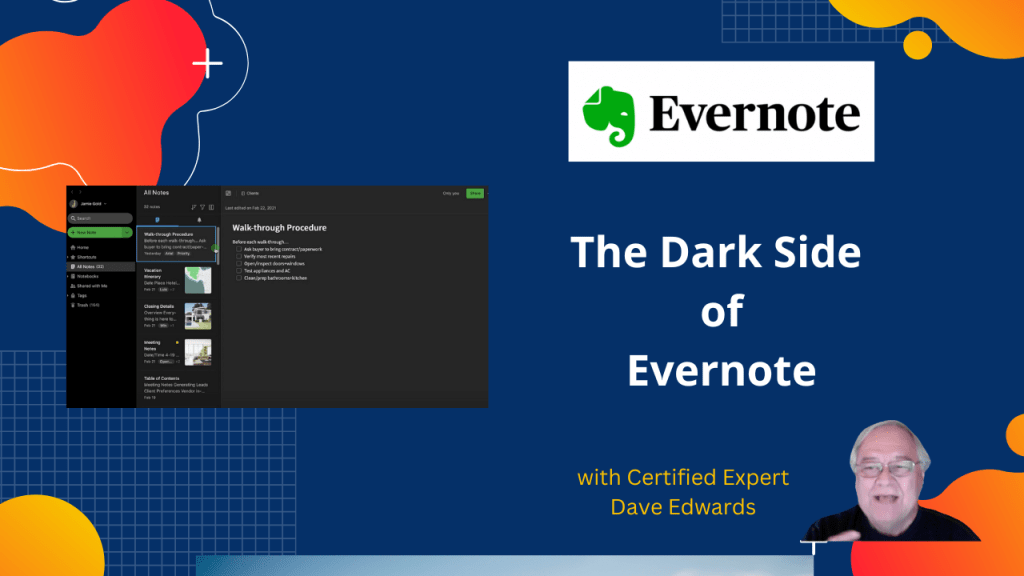
You may have noticed that some people use dark mode on their online apps. Evernote’s is better than most.

Dark mode in Evernote offers a sleek, eye-friendly interface that can reduce screen glare and improve note visibility in low-light environments while also adding a modern look to your workspace and enhancing your overall productivity. It is available on multiple platforms including macOS, iOS, and Android, but each requires specific app versions and operating system updates to function correctly. Users can easily enable dark mode through the Preferences menu, but it does not automatically change images with white backgrounds. The feature’s readability and appeal can vary depending on personal preference and contrast consistency within the app. Evernote provides online support since it does not offer phone help, making it important for users to know how to navigate settings and version requirements to optimize their note-taking experience.
- Evernote dark mode reduces screen glare and improves low-light visibility
- It adds a sleek, modern look to the Evernote workspace
- Dark mode is enabled via Preferences – Application settings
- White-background images remain unchanged in dark mode
- Readability depends on personal preference and contrast consistency
- Evernote offers online support but no telephone help desk

Evernote dark mode, Evernote tips, Evernote settings, Evernote app guide, Evernote macOS, Evernote iOS, Evernote Android, Evernote productivity, Evernote note-taking, dark mode benefits, reduce screen glare, low-light note-taking, Evernote help, Evernote support
 Dave Edwards Media
Leave a comment