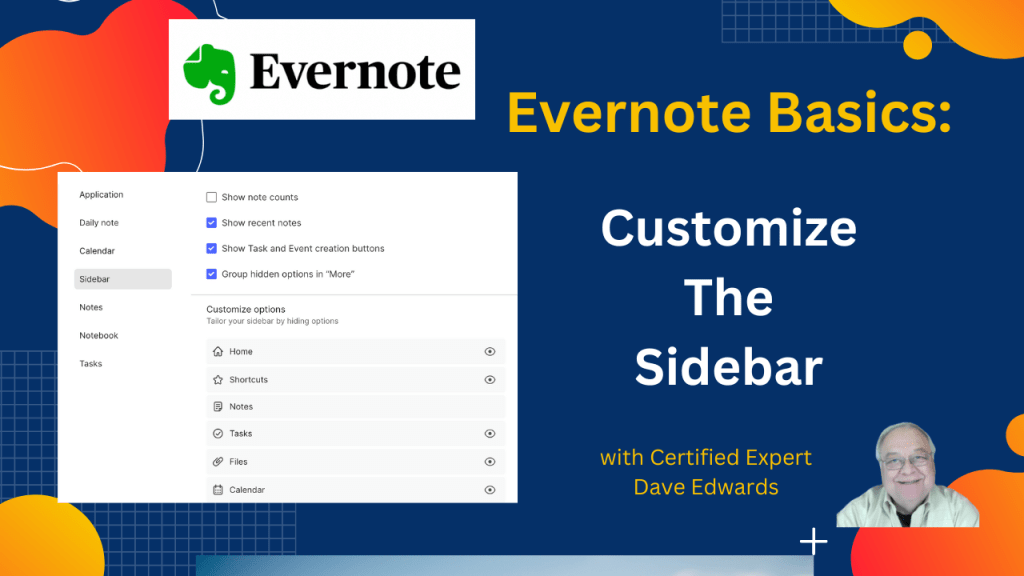
There’s a simple way to reduce clutter and make important elements more visible in Evernote. Customizing your sidebar will help you stay focused.
Whether you are new to Evernote or just want to see how to use it more effectively, my course “Evernote For Beginners” will help.

Evernote lets users customize the sidebar to reduce clutter and improve productivity by keeping important tools easy to see and use, with the sidebar serving as the main workspace for notebooks, shortcuts, notes, and tasks while simple settings allow users to hide unused features, control what appears, group hidden items, and shape Evernote around personal workflows so daily note taking and organization feel faster, cleaner, and more focused.
- Evernote allows users to customize the sidebar to reduce clutter and stay focused.
- The sidebar acts as the main hub for notebooks, shortcuts, and active notes.
- Sidebar customization helps improve productivity and daily workflow.
- Users access sidebar settings by clicking their name and opening settings.
- Evernote lets users show or hide note counts in notebooks.
- Recent notes can be turned on or off based on user preference.
- Task and event buttons can be hidden to simplify the interface.
- Features like calendar and tasks can be removed if unused.
- Hidden sidebar items can be grouped under a single More option.
- Customizing Evernote features helps users work faster and stay organized.

Evernote sidebar customization, Evernote sidebar settings, customize Evernote sidebar, Evernote productivity tips, Evernote organization, Evernote workflow, Evernote features, Evernote beginners guide, Evernote notes organization, Evernote task management
 Dave Edwards Media
Leave a comment